SITE INFORMATION

Bootleg Tutorials supplies free & easy to follow tutorials centered around bootleg audio & video trading. While doing this we also have a Trading Terms dictionary to help traders navigate some of the jargon used in bootleg trading.

Showing posts with label bootleg list. Show all posts

Wednesday, November 23, 2022

Easily Make Your Bootleg List In FilelistCreator


FilelistCreator Information

If you find your self struggling to create a metal bootleg list and maintain it easily, this tutorial might be for you. For this tutorial we are using a great little program called "FilelistCreator" by sttmedia. Since this is for a hobby and not a business, it is free to use. This handy program can be used with Windows, Linux or a MAC.

FilelistCreator is a super easy program to use and has several things to offer. There are many options for saving your list and it even has an import/export feature. You can save your list in text, xlsx, html or csv formats! For this tutorial we will be working with a text file.

Reasons To Make A Bootleg List

There are actually numerous reasons to make a list and maintain it. Here are the ones that I can think of off hand.

  • It makes it easier to trade. When you send an actual list to other traders its much easier for them to see what they want and choose shows.
  • You can cut down on duplicates. Having a list helps you keep up with what shows you have ensuring that you do not duplicate shows.
  • It's easier for you to select wants. If you maintain a list you can easily select wants from other traders and know that you will not be getting something you already have.
  • Other traders can copy and paste. Keeping a list makes it easy for other traders to copy and paste from your list the show(s) they are interested in.
  • Lists answer questions about shows. If you put various types of info on your directory name for a show it will answer some questions and make the trade go much more smoothly.

Why A Screen Shot Of Your Files Turns Off Some Traders

If you are one that would rather not create a list or simply don't have the time for it then there are a few things you should know. Many traders are turned off by someone just grabbing a quick screen shot of the directory with their shows in it. Reasons for this may vary with each trader. Some traders, like me, view it as being lazy. The way I see it is if you are too lazy to create a list then how lazy are you with your shows and your trades?

  • Do you check your shows to ensure they are complete and not lossy sourced?
  • Do you have enough information about your shows to answer any questions I might have?
  • How difficult will it be to complete a trade with you?
  • Will trading with you be a hassle?
  • Are your shows real and not fake?
  • Are you a real trader or are you a ripoff?
  • Do you pay attention to details?
  • I cannot copy and paste from an image, this will take twice the time for me to come up with a wants list.

What If You Are Not Lazy, But Just Don't Have The Time?

Well, that is different isn't it? If you are not actually lazy but just have a lot of stuff on your plate then a quick, easy solution could be the best thing for maintaining a list. This solution could be some sort of automatic list generator like the FilelistCreator. With this tutorial I'll help you set up your list and it should be pretty easy to maintain from that point on.

Easy Tips For Making Your List

  • Put each show in a directory even if its a HD show.
  • Name your directories in a similar format. This makes the list look a little more organized & neat.
  • Include as much info as you wish in your original directory name. This will reflect on your list when we are done.
  • Check out the program settings and set it up before getting started.
STEP 1:

Open FilelistCreator. You can do this by double clicking on the icon in the folder where you placed it after downloading and setting it up. For this tutorial I'm assuming that you have already downloaded the program & installed it.

Easily Make Your Bootleg List In FilelistCreator Screen 1

The above screen shot reflects how I've set mine up. Yours maybe different from mine.

STEP 2:

To create a list with your pre-named directories follow these settings below.

Easily Make Your Bootleg List In FilelistCreator Screen 2

  1. Be sure to untick the "Files" options and tick the "Folder" option.
  2. This is where you can toggle the columns. There are numerous options here that you can explore on your own. For the quickest list creation we are just going to work with the "General" & "Data Medium" filters.
  3. In the "General" filter put what you prefer as your "Column Header". This will put a header at the top of your list so that other traders know information about your list. As you can see I have simply named mine "VIDEO BOOTLEGS".
STEP 3:

Now we will set up the "Data Medium" filter.

Easily Make Your Bootleg List In FilelistCreator Screen 3

  1. Toggle the button and find the "Data Medium" filter.
  2. Tick the "Volume Name" box if its not ticked. Then in the "Column Header" space give it an appropriate name. I put "HDD" because I'm generating my list from an external hard drive. This helps me know what hard drive the show is stored on. This is optional as some of you may not need this column on your list.
STEP 4:

Click the "Search Folder" button.

Easily Make Your Bootleg List In FilelistCreator Screen 4

STEP 5:

After you click the button it will open a new window for you to choose the hard drive or directory that holds your shows.

Easily Make Your Bootleg List In FilelistCreator Screen 5

Since I have my shows on an external drive I can click on the D Drive to open and navigate to the folder I want to create a list from. If you have your shows on an external/internal drive with no folder hierarchy, then choose the hard drive instead of a folder.

STEP 6:

After locating the directory you want to create your list from click the "OK" button. There is no need to open the directory. Just click it to highlight and choose it.

Easily Make Your Bootleg List In FilelistCreator Screen 6

STEP 7:

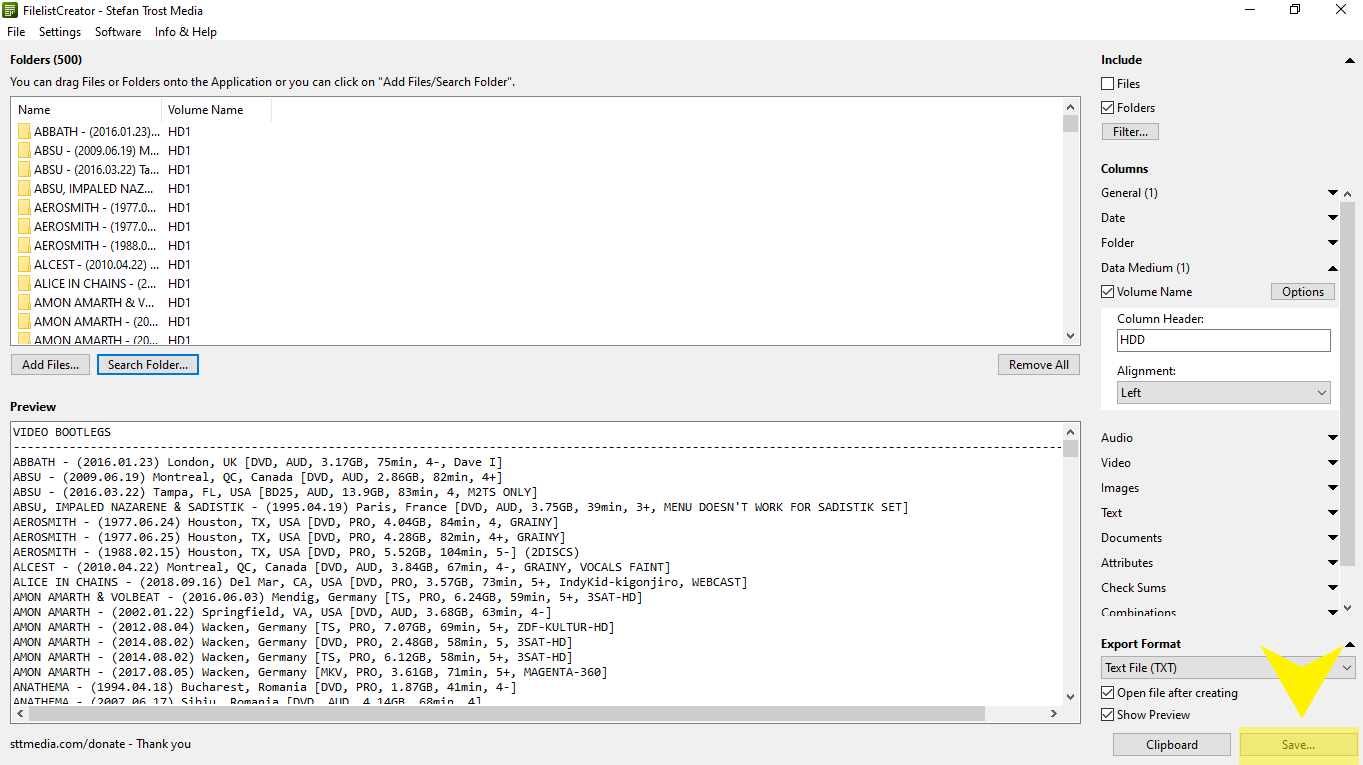
After clicking the "OK" button your list will generate. This may or may not take some time. It will depend on how many directories are in your hard drive/folder. The result after it has scanned the area will be similar to the below screen shot.
Easily Make Your Bootleg List In FilelistCreator Screen 7

Now click the "Save" button found on the bottom right of your screen.

STEP 8:

A new box will pop up. Give your list a name in the "Filename" box and then click the "Save" button. If you prefer not to save your list in text format, you can choose another format in your settings by going to "Settings > Save or Load Settings...".

Easily Make Your Bootleg List In FilelistCreator Screen 8

You are done! If you have any questions or issues please comment below!

Easily Create Your Trade List With Windows CMD


A few days ago I had posted a new tutorial on how to easily create your trade list when you don't have much time or feel like maintaining a website. The tutorial featured a great little program called FileListCreator. A couple of days ago another trader, TheMetalist contacted me on Discord and said, "There is an easier way..."! Big thanks to "TheMetalist" for taking his time to create some screens shots and a quick guide on creating your list using CMD in Windows.

Reasons You Should Have A List

There are numerous reasons you should have a list, many which I covered in the previous tutorial. The main reason most traders maintain a list is so that others can easily pick what they want for the trade & you know what you have and don't have.

Creating Your List Using Windows CMD

Technically this should work for Windows 10. The code maybe different for other versions of Windows.

QUICK TIPS:

  1. For this to work it helps if you have renamed your directories in a similar format although you don't have to. Renaming just makes your list appear neater and more easy to read.
  2. Each bootleg should be in its own directory with its own name.

STEP 1:

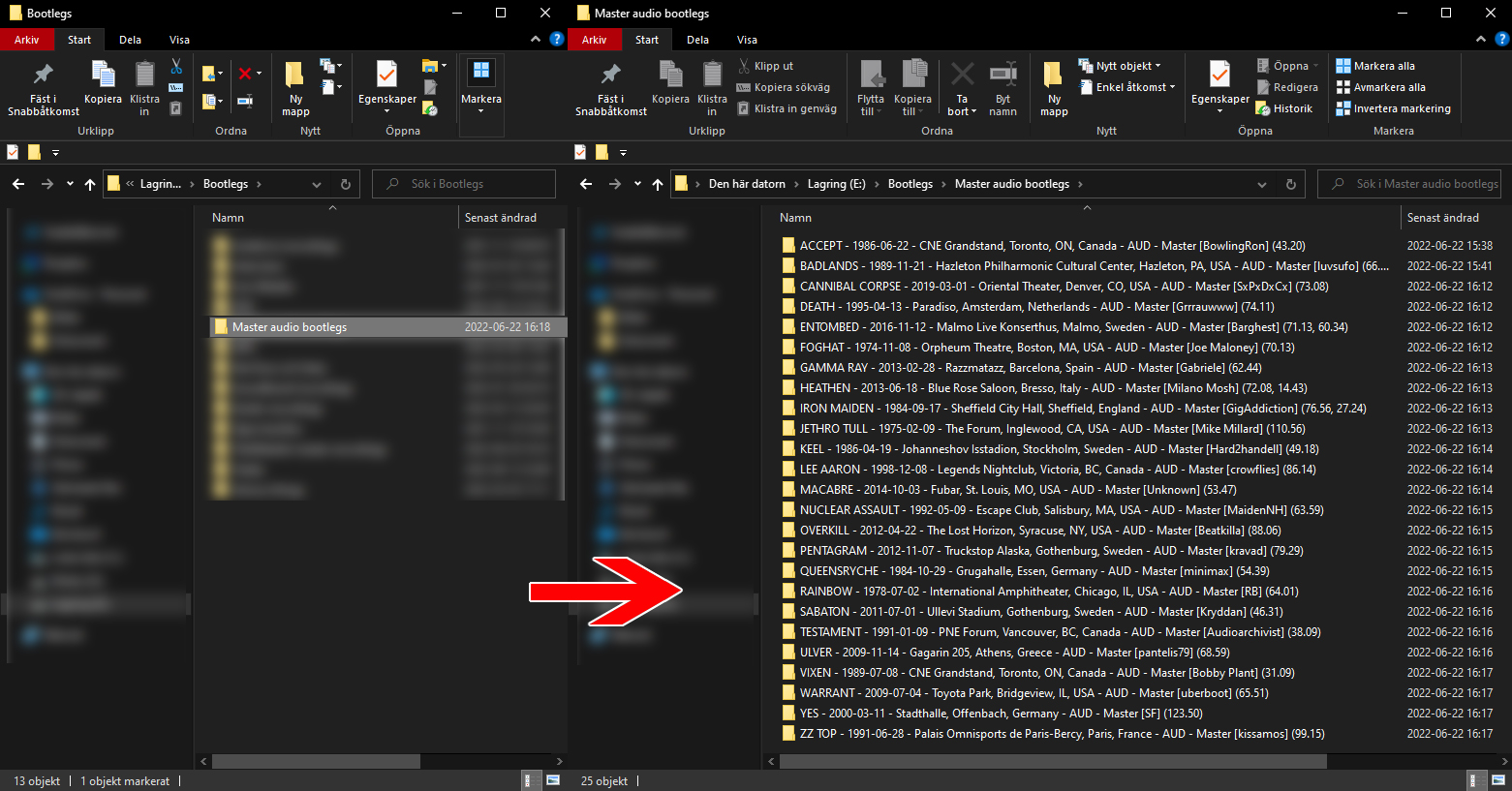
Open the folder with your collection.

Easily Creating Your Trade List With Windows CMD Screen 1

STEP 2:

Left click in the "address" field (in the empty spot after the folder name).

Easily Creating Your Trade List With Windows CMD Screen 2

STEP 3:

Write 'cmd' and press Enter. A command window will appear.

Easily Creating Your Trade List With Windows CMD Screen 3

STEP 4:

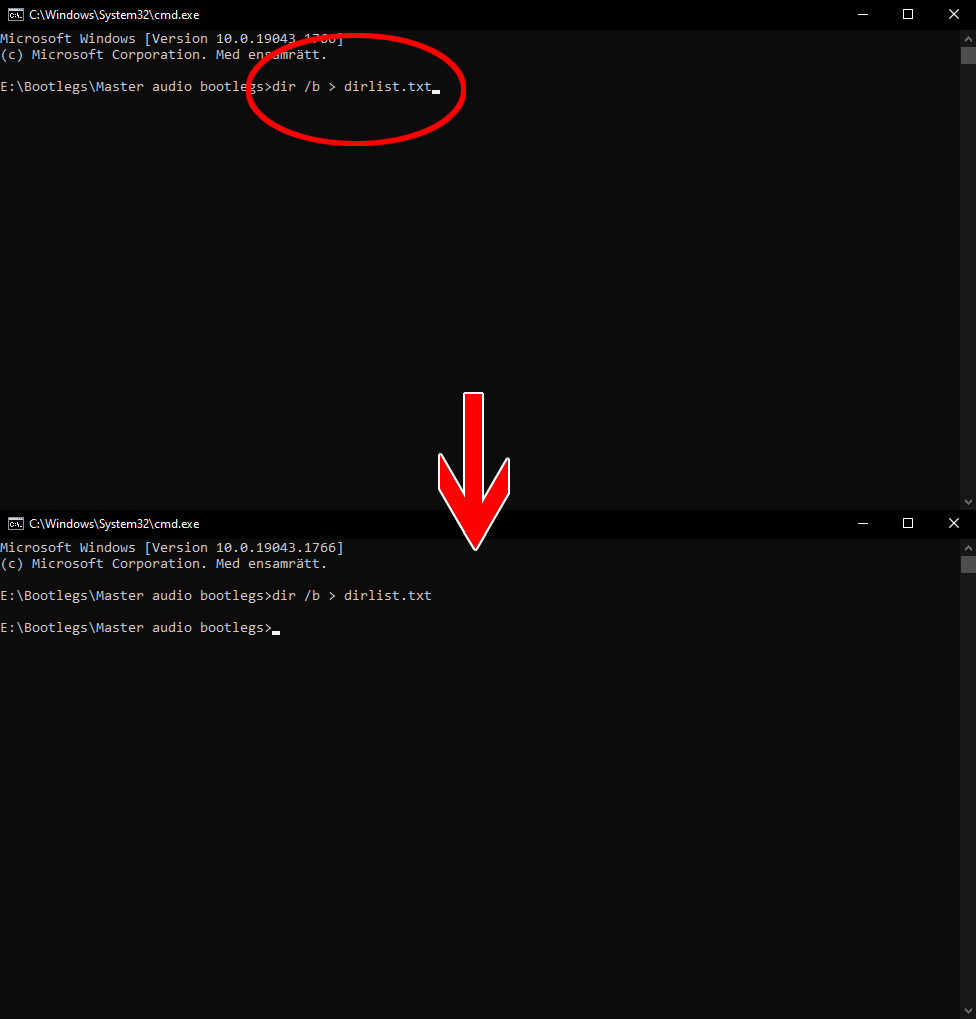
Paste "dir /b > dirlist.txt" in the cmd window (exclude the "), press Enter.

Easily Creating Your Trade List With Windows CMD Screen 4

STEP 5:

A text file called 'dirlist.txt' will be created in the folder. Rename it to whatever you want.

Easily Creating Your Trade List With Windows CMD Screen 5

STEP 6:

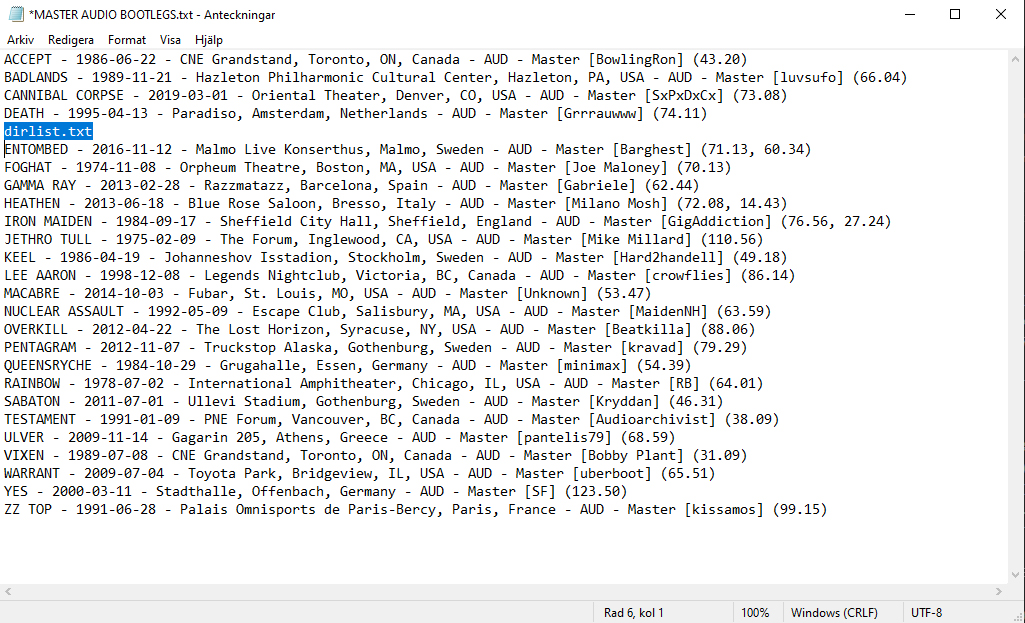
In the text file is your collection as a list based on the folder names.

Don't forget to the delete the line 'dirlist.txt' in your list.

Easily Creating Your Trade List With Windows CMD Screen 6

There you have it! Easy peasy! A big thanks to TheMetalist for providing this tutorial & the screenies!

How To Easily Create Your Trade List In Linux


If you find that you do not have lots of free time to create & maintain a list there are many quick and easy ways to make a list using your current directory structure. Apart from creating your list using Windows CMD or using "FilelistCreator" there is also a way to create your list in Linux. This tutorial will teach you how to create your trade list in Linux if you happen to be using it  instead of Windows.

Which Distro Will This Guide Work With?

If you use Linux often then you know there are numerous distros or distributions offered. Each distro may have unique codes used in the terminal. For this tutorial the method I'll show you should work with ANY Linux distribution out of the box.

What Do I Need To Create My Trade List In Linux?

You will need the following things:

  • Knowledge of how to use a terminal in Linux
  • Your shows ordered in a directory of your choice. For this tutorial your shows can be on a external hard drive.
  • Each show in its own directory named how you prefer.

STEP 1:

Find the pathway to your folder with your shows. This is actually easier than you think. If you are unsure of the pathway then navigate to the folder that has your shows right click on it and choose "Open Terminal".

How To Create Your Trade List Easily In Linux Screen 1

STEP 2:

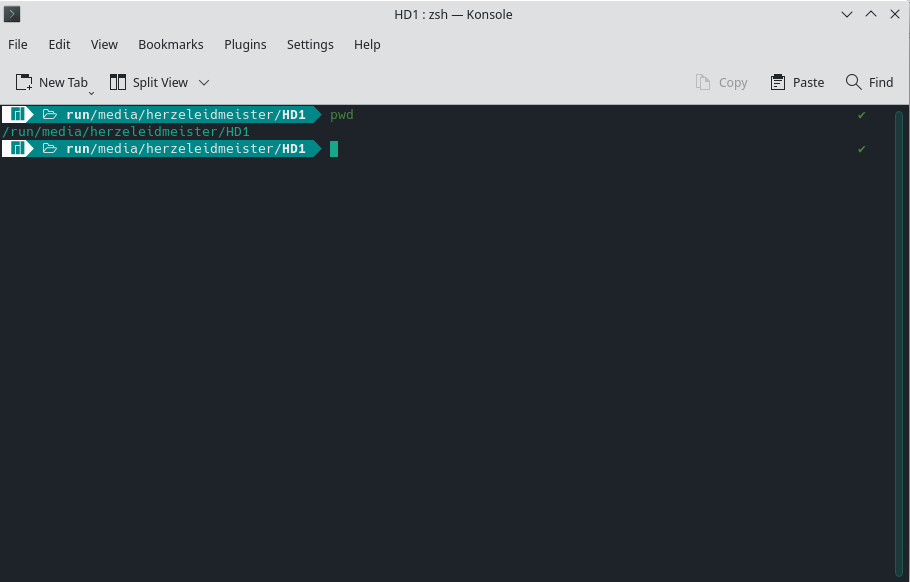
When the terminal opens type in "pwd" and then hit enter. Then you will see your pathway results. As you can see I'm using an external hard drive to generate my list. Make a note of your pathway and move to the next step.

How To Create Your Trade List Easily In Linux Screen 2

STEP 3:

If your terminal is not opened already from finding your pathway, open your terminal. If you are not sure where it is you can usually find it in the Applications. If not ask at the developers web page or forum. I'm using Manjaro Linux so my terminal may vary from yours.

How To Create Your Trade List Easily In Linux Screen 1

STEP 4:

I'm going to break down the code so you can somewhat understand what its asking the PC to do. The generic code is shows below.

find /run/PATH/TO/YOUR/FILES -maxdepth 1 -type d -printf '%f\n' | sort > /PATH/TO/YOUR/OUTPUT/FILE/NAME.txt

Take the pathway to your shows that you found above and replace the first bold red "PATH/TO/YOUR/FILES" with your actual pathway. So as you can see from the terminal screen shot above my shows are on an external hard drive so my pathway in this code would look like this:

find /run/media/herzeleidmeister/HD1/2.VIDEO -maxdepth 1 -type d -printf '%f\n' | sort > /PATH/TO/YOUR/OUTPUT/FILE/NAME.txt

Now replace "/PATH/TO/YOUR/OUTPUT/FILE/NAME" with the directory you wish the generated file to be placed and choose a name for your file. So in my case I'll name my file "VIDEO-BOOTLEGS-LIST-UPDATED-2022-07-11.txt". And I wish to place my file in my delegated "-=TRADES=-" folder.

EDIT #1: If you find that your list did not sort properly or was in one long drawn out paragraph, take a look at the code you pasted and make sure to redo the apostrophe's in this part of the code:

‘%f\n’

QUICK NOTE: You can find your pathway for your output folder the same way you found the directory that held your shows!

My final code will look like this:

find /run/media/herzeleidmeister/HD1/2.VIDEO -maxdepth 1 -type d -printf '%f\n' | sort > /home/herzeleidmeister/Documents/-=TRADES=-/VIDEO-BOOTLEGS-LIST-UPDATED-2022-07-11.txt

CODE BREAKDOWN:

find /run/PATH/TO/YOUR/FILES -maxdepth 1 -type d -printf '%f\n' | sort > /PATH/TO/YOUR/OUTPUT/FILE/NAME.txt

  1. find /run = This tells the terminal to find this info & run the code.
  2. /PATH/TO/YOUR/FILES = Is the pathway to your bootleg shows.
  3. -maxdepth 1 = This indicates that you only want to grab the top level directory names. I use this so I don't end up with some shows split up into CD1, CD2 or DVD1, DVD2 etc. If you want to get directories past the top level then change the "1" to "2", "3" or whatever level you want.
  4. -type d -printf '%f\n' | = This bit of code tells your terminal what type & that the result should be printed. Its best not to mess with this bit as it works how it is unless you have greater knowledge of using the Linux terminal.
  5. sort > = This bit of code will sort the list in alphabetical order.
  6. /PATH/TO/YOUR/OUTPUT/FILE/NAME.txt = This is the pathway and file output name you wish to have.

STEP 5:

Once you get this code sorted, copy and paste it into the terminal and hit enter.This should generate your list for you.

How To Create Your Trade List Easily In Linux Screen 4

You can see by the little check mark on the far right side that my list is done generating. Your terminal may look different.

STEP 6:

And here is the result. Don't forget to remove any portions from the list generation that do not belong. In my case I would remove the "2.VIDEO" at the top of the list.

How To Create Your Trade List Easily In Linux Screen 5

And there you have it! If you should run into problems or have any questions please post them as comments. I'll do my best to answer them.